At the end of Part 1, the character spawned, moved and jumped in an online session. It didn’t feel like a game yet, though. The camera stayed put, the model slid around without animating, and the movement tuning was hard-coded in a system.
Part 2 fixes all of that in under ten minutes. Along the way it covers the idea in Quantum that trips up most Unity developers coming from single-player work: the simulation and the view are two separate worlds.
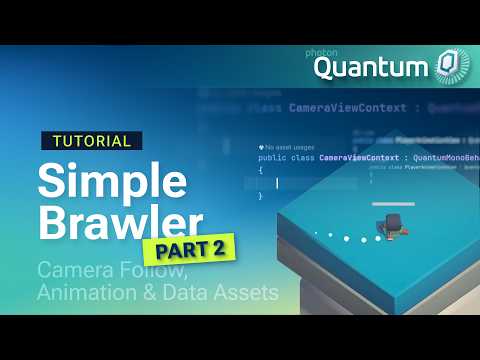
Camera Follow, Animation & Data Assets – Photon Quantum 3.1 Simple Brawler Tutorial (Part 2)
Why you can’t just parent the camera
In a regular Unity project, you’d grab the player’s transform on spawn and hand it to Cinemachine. In Quantum, the player’s GameObject is a view of a simulation entity, created and driven by the view layer. The simulation doesn’t know the camera exists, and it shouldn’t.
The tempting shortcut is a singleton or FindObject call. The video uses Quantum’s own mechanism instead: an Entity View Context. A small CameraViewContext script implements IQuantumViewContext, holds a reference to the CinemachineCamera, and sits next to QuantumEntityViewUpdater in the scene. Any view component can then reach the camera through ViewContext.
With that in place, following the player takes a handful of lines:
public override void OnActivate(Frame frame)
{
    var link = frame.Get<PlayerLink>(EntityRef);
    if (!Game.PlayerIsLocal(link.Player)) return;

    ViewContext.Camera.Follow = transform;
}
The PlayerLink component from Part 1 does the work of identifying which entity belongs to the local player.
Animation reads from the simulation
Animation follows the same rule. An Entity View Component reads the PhysicsBody3D velocity in OnUpdateView, converts its magnitude to a float, and feeds it to the Animator’s Speed parameter. The simulation stays authoritative and the view just reflects it.
One detail from the video is worth copying into your own projects. Check that the entity still exists before reading from it. A destroyed entity’s view can linger for a moment, and without the check your view script reads from something the simulation already removed.
Facing direction is handled on the simulation side, using FPQuaternion.LookRotation and Slerp inside the movement system. The method only runs when there’s movement input, so the character keeps facing the last direction instead of snapping back when you let go of the stick.
Getting magic numbers out of systems
The last third of the video moves MoveForce, JumpForce and a new TurningSpeed into a PlayerConfig Data Asset. It’s a ScriptableObject with a deterministic Quantum GUID, so designers can tune it in the Inspector like any other asset. A PlayerState component holds an asset_ref<PlayerConfig>, and the movement system resolves it with frame.FindAsset.
Two rules come with Data Assets, and both protect determinism. Fields the simulation reads must use deterministic types like FP, never float or Unity’s Vector3. And nothing writes to the asset while the simulation is running.
Gameplay after the refactor feels identical. The difference is that the next value you want to tweak lives in one asset instead of being scattered through system code.
Next up
The Simple Brawler Part 2 documentation page has the full step-by-step, every code snippet, the Cinemachine settings used in the video, and a pitfalls table. Upcoming parts of the series move on to the life and death cycle and proper spawning. If you get stuck, ask on the Photon Discord.