Until now, the Photon Video SDK was a preview available only to Industries Circle customers. Starting with Photon Voice & Video 2.64, every Photon developer can use it.
If people in your Unity app need to see each other, or see what someone’s camera sees, you can now add live video with the same tools you already use for multiplayer and voice. It runs on phones, desktops, XR headsets and smart glasses.
What is Photon Video?
Photon Video adds live video streaming and screen sharing to Unity apps. It’s an extension of Photon Voice, so it gets audio transmission, rooms and matchmaking from Voice. If you’ve used Photon Voice, you already know the workflow.
Clients join a room, and each client can publish one outgoing stream that everyone else in the room receives. You can display the local preview and the incoming streams in your UI or directly in your 3D scene.
Streams aren’t limited to device cameras. Anything that can be represented as a Unity Texture can be streamed: a webcam, a phone’s front or back camera, a render texture from an in-game camera, or a shared screen.
Photon Video works standalone or alongside other Photon SDKs, with integrations for Fusion and Quantum. Supported platforms are Android, iOS, Windows, macOS and Linux, as well as XR headsets and smart glasses.
What’s new in 2.64
Open to everyone. Photon Video is no longer limited to the Industries Circle. Any developer can download the SDK and start building.
A dedicated Video App ID. You can create a Video App ID directly in the Photon Dashboard. It covers both video and voice, so you only need one App ID for your whole communication layer.
Full documentation. The SDK now has its own documentation section. It includes a quick start guide, a manual covering components, video settings and camera selection, and a troubleshooting section.
High-level components. This is the biggest change in 2.64. The SDK now includes Unity components that cover the full pipeline:
Senders capture and publish a stream from a webcam, a phone camera or any texture.
Receivers detect the streams other users in the room publish.
Display handlers show the local preview and remote streams on 3D surfaces in your scene or in a 2D UI, and lay them out automatically.
In most projects, adding video now means placing these components in your scene and configuring them instead of writing streaming code.
Samples
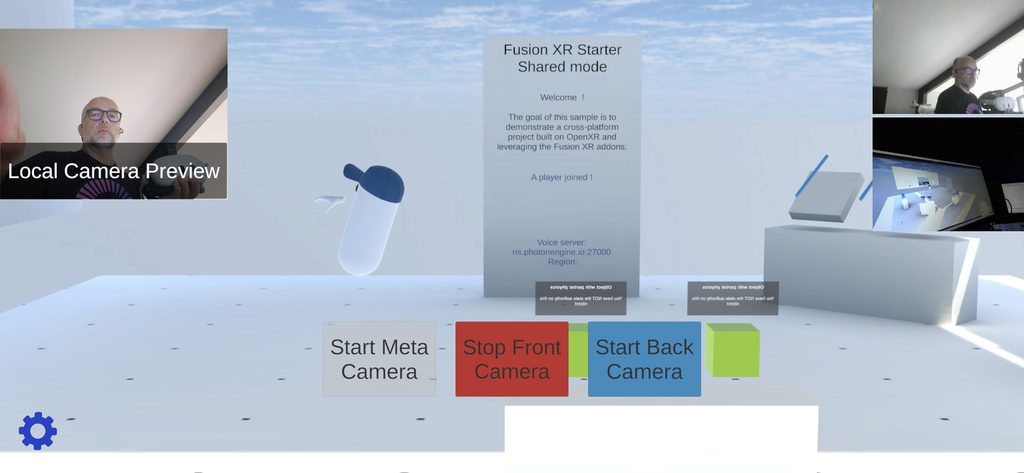
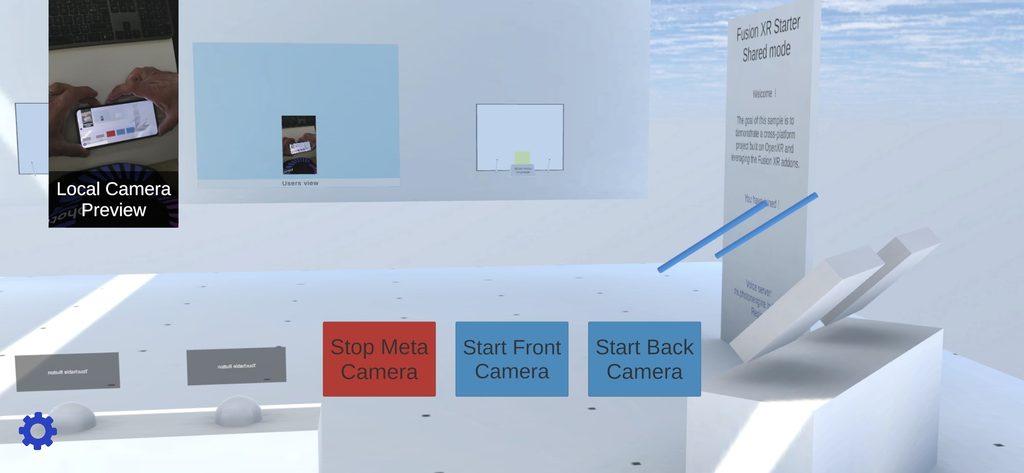
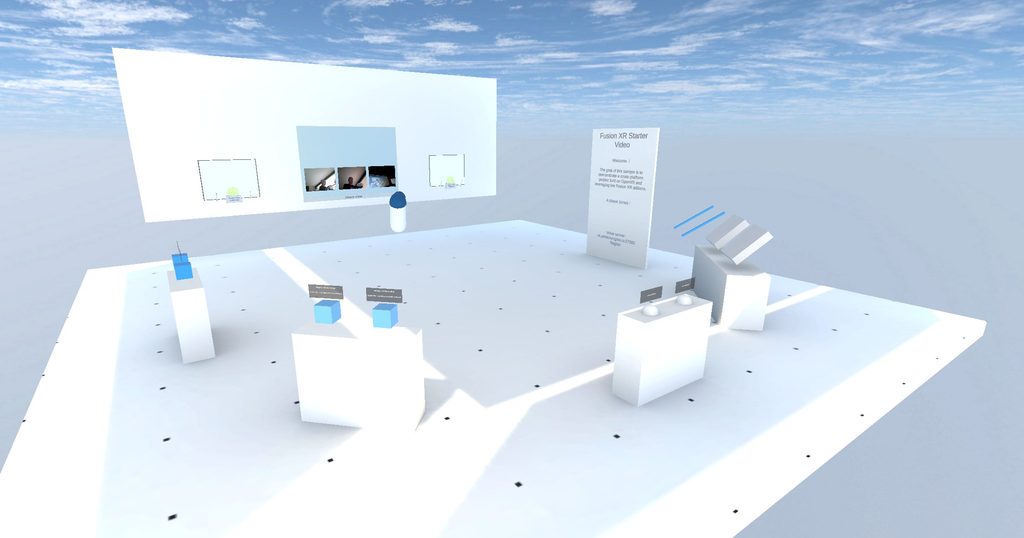
We’re releasing the Fusion Cross-platform XR Starter Video sample alongside the SDK. In it, every user streams their camera to everyone else, whatever device they’re using.
The same project builds for:
Android and iOS phones
Windows and macOS
Meta Quest
Samsung Galaxy XR headsets running Android XR
Meta smart glasses paired with an Android phone
the browser
Remote streams appear on the walls of the shared scene, and in an on-screen UI for mobile and desktop users.
The sample needed very little custom code. Most of the scene is prefabs and components from the Video SDK and our XR add-ons. No platform needed its own streaming code: phones and desktops use the generic webcam sender, and Quest and Meta glasses use the platform-specific senders from the Video SDK add-on. If you need a device that isn’t listed above, you can write your own add-on for it.
In the smart glasses build, everyone else in the room sees what the wearer sees, in real time. It runs on the same pipeline as a phone-to-phone video call.
If you’re working with smart glasses, use the Meta Wearables Camera Streaming sample as your reference for streaming the camera of Meta glasses to remote users. Since its first version in April, we’ve reworked and simplified its architecture around the Video SDK. Its Kotlin plugin now works with version 1.0 of Meta’s Device Access Toolkit (DAT).
What’s next
Three additions are coming with the next release.
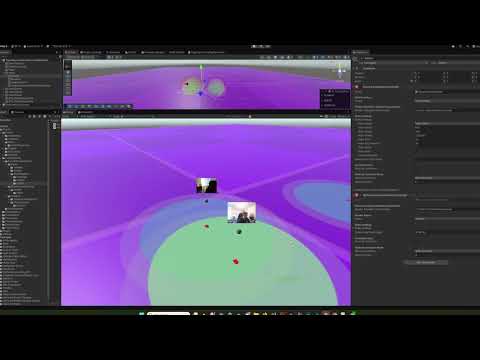
Proximity video with Dynamic Audio Group. Our Dynamic Audio Group add-on lets users hear only the people near them. Its next update adds Photon Video support and makes it usable outside XR projects. When you walk up to another player, their camera feed appears, and when you walk away, it disappears. Out-of-range streams aren’t received at all, so they use no bandwidth. By default, when nobody is in range, your voice and video aren’t sent either.
Proximity Video in Unity: Photon Video with Dynamic Audio Group (Demo)
An AI agent skill for Photon Video. The next release will include a skill for AI coding agents. You describe what you want, and the agent sets up a working video streaming scene in your Unity project in under two minutes.
A gaming sample. So far, Photon Video has mostly been used in industry applications. In games, it could show your friends’ faces during a co-op session, or power a party game built around live reactions. A sample showing video in a game is in progress and will be released in the coming months.
Our default plans cover most projects. If yours needs more, or you’d like to tell us what you’re building, contact us at hello@photonengine.com or on our Discord.