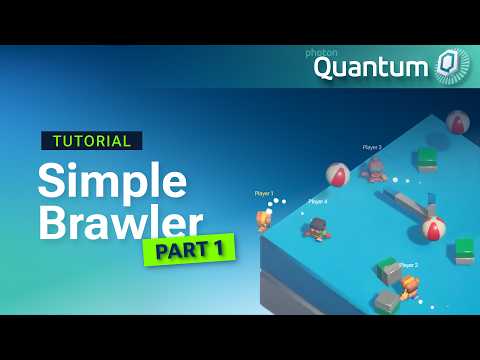
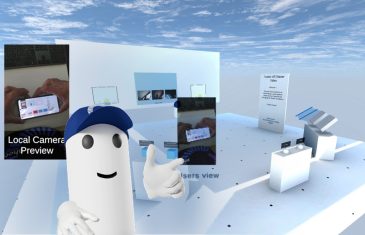
Most multiplayer tutorials either stop at “hello world” or throw a finished project at you and ask you to reverse-engineer it. Simple Brawler takes the middle road. It’s a new video series where we build a small party brawler with Photon Quantum from an empty Unity project, one system at a time.
By the end of the series, each character gets an attack that knocks other players and props off a platform, and the last one standing wins. Part 1 is about the ground floor: a character that spawns, moves, jumps, and does all of that in an online session between the Unity editor and a standalone build.
Build a Multiplayer Brawler From Scratch – Photon Quantum 3.1 Simple Brawler Tutorial (Part 1)
What you build in 12 minutes
The video starts with project setup. You grab the Quantum 3.1 SDK, create an App Id in the Photon Dashboard, and let the Quantum Hub configure a Unity 6.3 LTS URP project for you.
From there it gets into how Quantum structures gameplay code. Entities are plain IDs, components hold data, systems change that data, and signals let systems react to things like a player joining. You define a PlayerLink component in a .qtn file, save it, and Quantum’s codegen writes the C# struct for you.
A PlayerJoinedSystem then listens for ISignalOnPlayerAdded, spawns the avatar the player brought with them, and tags it with PlayerLink. Here’s the core of it:
public void OnPlayerAdded(Frame frame, PlayerRef player, bool firstTime)
{
    var entityPrototype = frame.GetPlayerData(player).PlayerAvatar;
    var entity = frame.Create(entityPrototype);
    frame.Add(entity, new PlayerLink() { Player = player });
}
Input comes next. You declare it in the same QTN file using fixed-point types (FPVector2 Movement; button Jump;), read it from Unity’s Input System, and hand it to the simulation. A PlayerMovementSystem filters for every entity with PlayerLink and PhysicsBody3D, then applies force for movement and an impulse for jumping.
Last step: swap the local debug runner for Quantum’s Start UI, build a standalone player, and join the same session from the editor. Keyboard and controller both work, and there’s no custom networking code anywhere in the project.
A few things worth noticing
Some of Quantum’s rules look fussy on first contact. The video explains why they exist.
Unity’s Vector2 and Vector3 never enter the simulation. They’re float-based, and floats can produce slightly different results on different hardware, which breaks determinism. Converting input to FPVector2 on the Unity side keeps every client’s simulation identical.
Components are structs, so changing one means grabbing a pointer through frame.Unsafe.GetPointer<T>. Modify a copy and your change disappears.
A system you forget to register in QuantumDefaultConfig compiles fine and silently does nothing. This one catches almost everyone once.
If you press Play and nothing spawns, check the Local Players array on QuantumLocalDebugRunner. Quantum starts in spectator mode by default.
Before you start
The video assumes you already know what Quantum is and roughly how deterministic predict/rollback works. If that’s new, watch the Quantum beginner guide first; it’s the better starting point.
Quantum 3.1 was in preview when we recorded, so your SDK build number may differ. The APIs used in the series are stable across releases.
What’s next
Part 1 ends with movement that still feels a bit floaty, and that’s intentional. Upcoming parts add animations, a life and death cycle, and proper spawn logic, working toward the full knockback brawler.
For step-by-step instructions, code snippets, timestamps, and a pitfalls checklist, see the Simple Brawler Part 1 documentation page. Questions while you follow along? The team and community are on the Photon Discord.
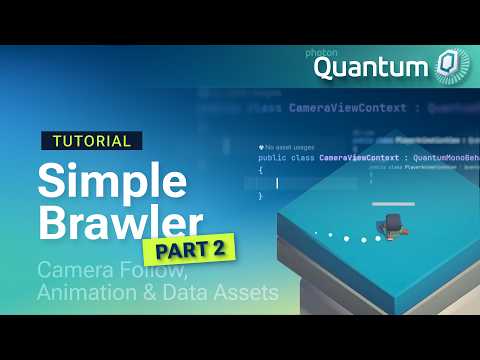
Simple Brawler Part 2: Camera, Animation and Data Assets in Photon Quantum
At the end of Part 1, the character spawned, moved and jumped in an online session. It didn’t feel like a game yet, though. The camera stayed put, the model slid around without animating, and the movement tuning was hard-coded in a system.
Part 2 fixes all of that in under ten minutes. Along the way it covers the idea in Quantum that trips up most Unity developers coming from single-player work: the simulation and the view are two separate worlds.
Camera Follow, Animation & Data Assets – Photon Quantum 3.1 Simple Brawler Tutorial (Part 2)
Why you can’t just parent the camera
In a regular Unity project, you’d grab the player’s transform on spawn and hand it to Cinemachine. In Quantum, the player’s GameObject is a view of a simulation entity, created and driven by the view layer. The simulation doesn’t know the camera exists, and it shouldn’t.
The tempting shortcut is a singleton or FindObject call. The video uses Quantum’s own mechanism instead: an Entity View Context. A small CameraViewContext script implements IQuantumViewContext, holds a reference to the CinemachineCamera, and sits next to QuantumEntityViewUpdater in the scene. Any view component can then reach the camera through ViewContext.
With that in place, following the player takes a handful of lines:
public override void OnActivate(Frame frame)
{
    var link = frame.Get<PlayerLink>(EntityRef);
    if (!Game.PlayerIsLocal(link.Player)) return;

    ViewContext.Camera.Follow = transform;
}
The PlayerLink component from Part 1 does the work of identifying which entity belongs to the local player.
Animation reads from the simulation
Animation follows the same rule. An Entity View Component reads the PhysicsBody3D velocity in OnUpdateView, converts its magnitude to a float, and feeds it to the Animator’s Speed parameter. The simulation stays authoritative and the view just reflects it.
One detail from the video is worth copying into your own projects. Check that the entity still exists before reading from it. A destroyed entity’s view can linger for a moment, and without the check your view script reads from something the simulation already removed.
Facing direction is handled on the simulation side, using FPQuaternion.LookRotation and Slerp inside the movement system. The method only runs when there’s movement input, so the character keeps facing the last direction instead of snapping back when you let go of the stick.
Getting magic numbers out of systems
The last third of the video moves MoveForce, JumpForce and a new TurningSpeed into a PlayerConfig Data Asset. It’s a ScriptableObject with a deterministic Quantum GUID, so designers can tune it in the Inspector like any other asset. A PlayerState component holds an asset_ref<PlayerConfig>, and the movement system resolves it with frame.FindAsset.
Two rules come with Data Assets, and both protect determinism. Fields the simulation reads must use deterministic types like FP, never float or Unity’s Vector3. And nothing writes to the asset while the simulation is running.
Gameplay after the refactor feels identical. The difference is that the next value you want to tweak lives in one asset instead of being scattered through system code.
Next up
The Simple Brawler Part 2 documentation page has the full step-by-step, every code snippet, the Cinemachine settings used in the video, and a pitfalls table. Upcoming parts of the series move on to the life and death cycle and proper spawning. If you get stuck, ask on the Photon Discord.
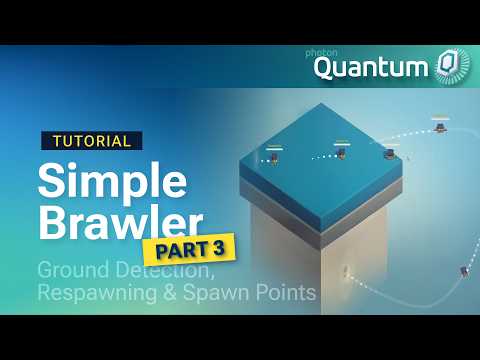
Simple Brawler Part 3: Ground Checks, Respawns and Spawn Points in Quantum
After Part 2, the brawler looked right. The camera followed you, the character animated, and the tuning values lived in a Data Asset. It still didn’t play like a match, though. You could jump forever in mid-air, falling off the platform meant you were gone for good, and every player spawned on the same spot.
Part 3 fixes those three problems in about 11 minutes, and adds nickname tags so you can tell who’s who.
The video opens with a small but useful point. The nickname tag above each character needs to face the camera, and the script that does it is a plain MonoBehaviour that caches the camera rotation and applies it in LateUpdate. Nothing about it touches the simulation, so there’s no reason to involve Quantum’s lifecycle.
The nickname itself does come from Quantum. An Entity View Component reads the player’s data through PlayerLink, writes the nickname into a TMP_Text, and turns it yellow if the player is local.
Ground checks in the simulation
Infinite jumping is the classic missing-ground-check bug, and the fix looks familiar if you’ve done it in Unity. The movement system casts a ray down from the player using frame.Physics3D.Raycast, with query options set to HitStatics | HitDynamics so it hits the platform and other bodies. The ray length is a new GroundCheckingDistance field on the PlayerConfig Data Asset from Part 2.
The result goes into an IsGrounded flag on PlayerState, and the jump only fires when it’s true:
A local variable would have worked for the jump check alone. Storing the flag on a component means the animation view component can read it too, which replaces the hard-coded isGrounded = true left over from Part 2.
Falling out of the map
The respawn loop shows how Quantum systems talk to each other. A large trigger box sits under the platform with an OnDynamicTriggerEnter callback flag and an empty FallBox component that identifies it. A new FallSystem implements ISignalOnTriggerEnter3D, checks that the trigger is the fall box and the other entity is a player, then raises a custom signal:
signal OnPlayerRespawned(EntityRef entity);
FallSystem doesn’t move the player itself. PlayerJoinedSystem implements the generated ISignalOnPlayerRespawned interface and handles placement, so detection and response stay in separate systems. If you later add a respawn delay or a lives counter, the fall detection doesn’t need to change.
Four corners, any number of players
With one respawn position, two players falling at the same time land on top of each other. The video adds four PlayerSpawnPoint entities, one per corner, and assigns them by taking the player index modulo the spawn point count. Players five and up wrap around and reuse a corner.
A spawn point’s index can’t be queried directly, so MovePlayerToSpawnPoint walks a component iterator with a counter until it reaches the right one. It then copies the position and zeroes both linear and angular velocity, so the player doesn’t arrive still carrying their falling speed. The same method runs on join and on respawn.
Next up
The Simple Brawler Part 3 documentation page has every step, the full raycast and spawn point code, and a pitfalls table covering callback flags, velocity resets and system registration. Part 4 moves on to attacking, which is where the brawler finally becomes a brawler. Questions while you follow along can go to the Photon Discord.
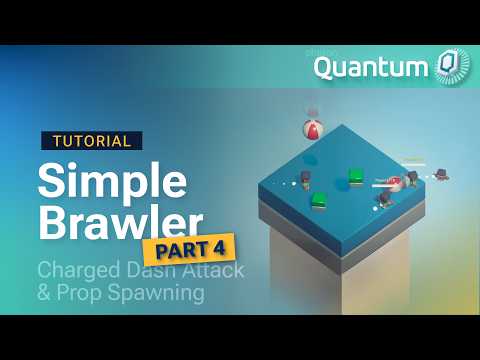
Simple Brawler Part 4: Charged Dash Attack and Prop Spawning in Quantum
Three videos in, Simple Brawler had everything except the brawling. Players could move, jump, fall off and respawn on their own corner of the map. Part 4 adds the attack, and props to shove off the platform along with other players.
It’s also the episode where Quantum’s determinism rules start showing up in everyday code: random numbers, system fields and collections all come up, and the video explains why each one is handled the way it is.
Props come from a PropSpawner declared as a singleton component, which guarantees exactly one instance in the simulation. It holds a list of prototypes and a FrameTimer. Because there’s only one spawner, PropSpawnerSystem doesn’t need a filter. It inherits from SystemMainThread, grabs the spawner with GetPointerSingleton, and acts when HasStoppedThisFrame says the timer just ran out.
Picking a random prop uses frame.RNG, Quantum’s deterministic RNG session. It feels like any other Next(min, max) call, but every client gets the same sequence from the same seed. To make sessions differ from one another, the seed is randomized once on the Unity side through RuntimeConfig.Seed, before the simulation starts.
Why system fields are readonly
The refactoring step is short but worth watching. Pulling magic numbers out into fields raises a question: why static readonly FP and not const? Because FP isn’t a built-in C# type. The bigger rule behind it is that systems have to be stateless. A value written to a system field lives outside the frame, so it doesn’t roll back with the rest of the state, and writing to one breaks determinism. Mutable data goes in components.
Charge, release, dash, push
The attack is built around one number: a normalized strength from 0 to 1. While the button is held, AttackSystem adds up hold time, capped at ChargeDurationSeconds. On release, the hold time divided by the full charge time becomes the strength, and it scales both the player’s forward dash and the knockback on whatever gets hit. Release at half charge and both are half as strong.
Timing comes from three FrameTimer fields on an AttackData component. An activation timer adds a short delay before the dash, a duration timer defines how long the attack can hit things, and a cooldown timer stops the player from immediately charging again.
Hit detection uses Shape3DConfig, which wraps box, sphere and capsule shapes into one field on the PlayerConfig Data Asset. The system creates the shape, runs Physics3D.OverlapShape in front of the player, and pushes each hit body away from the attacker:
csharp
var attackShape = playerConfig.AttackShape.CreateShape(frame);
var hitCollection = frame.Physics3D.OverlapShape(attackCenter, transform.Rotation, attackShape);
A hash set that cleans up after itself
The overlap runs every tick while the attack is active, so the same target can show up many times. Hit entities go into a hash_set<EntityRef> that is cleared at the start of each attack. The video also adds AllocateOnComponentAdded and FreeOnComponentRemoved to it. Quantum collections aren’t allocated by default or freed when their component goes away, and these two attributes handle both.
The payoff
The final test is the reason Quantum fits a game like this. A player dashes into a pile of balls and cubes, they scatter, and another player gets clipped on the way. Every client sees the same result, and the project contains no networking code. Each client runs the same simulation from the same inputs.
Next up
The Simple Brawler documentation has the full step-by-step for Part 4, including the complete AttackSystem, the PlayerConfig attack fields and a pitfalls table. You can also download the sample project as it stands at the end of this video. Part 5 adds a rotating obstacle and a lives and death system with UI. Questions go to the Photon Discord.